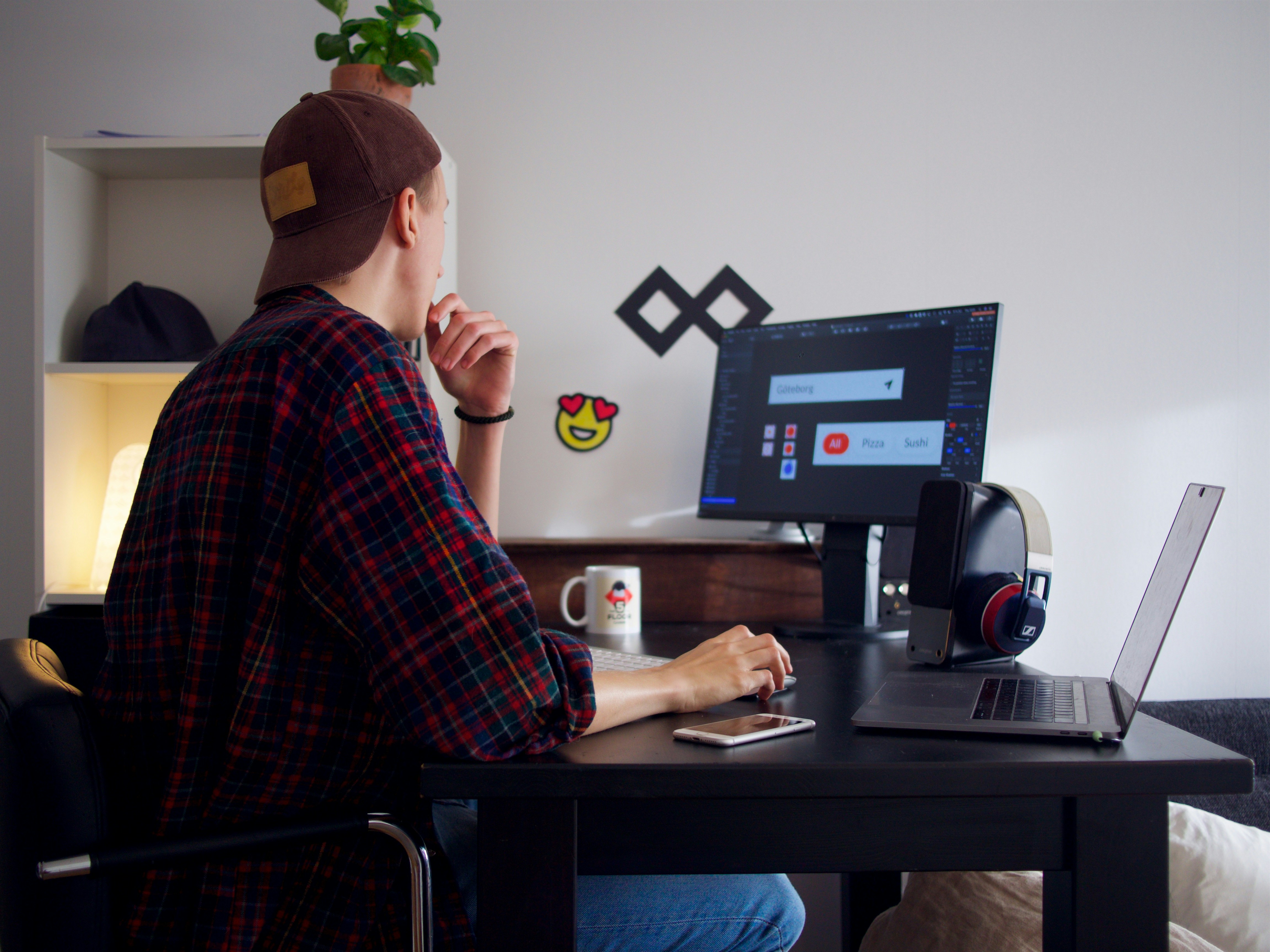
Remote work is no longer the exception — it's how a large share of knowledge workers spend their week.
Yet most people build their remote work setup by accident: a laptop, a kitchen chair, and whatever Wi-Fi the router feels like giving them that day.
That improvised approach quietly costs you focus, comfort, and a few inches off your posture. The good news is that a great setup isn't about spending thousands. It's about getting four things right.
This guide walks through exactly what to consider, what makes a workspace feel comfortable, and how to build a setup that's genuinely productive — on any budget.
Why Your Remote Work Setup Matters More Than You Think
The space you work in is one of the few variables you fully control, and the research shows it pulls real weight in both directions.
On the upside, Stanford's long-running remote work studies found fully remote employees are roughly 13% more productive on individual, focused tasks than their in-office peers — driven largely by fewer interruptions and more control over their environment. The U.S. Bureau of Labor Statistics reached a similar conclusion in 2024, linking the rise in remote work to higher productivity across 61 industries.
But there's a catch, and it's physical. A widely cited Chubb survey found 41% of remote workers developed new or worse back, neck, or shoulder pain after going remote, and peer-reviewed studies put musculoskeletal complaints among home workers as high as 61%.
The difference between those two outcomes usually isn't the person — it's the setup. So let's build one that works.
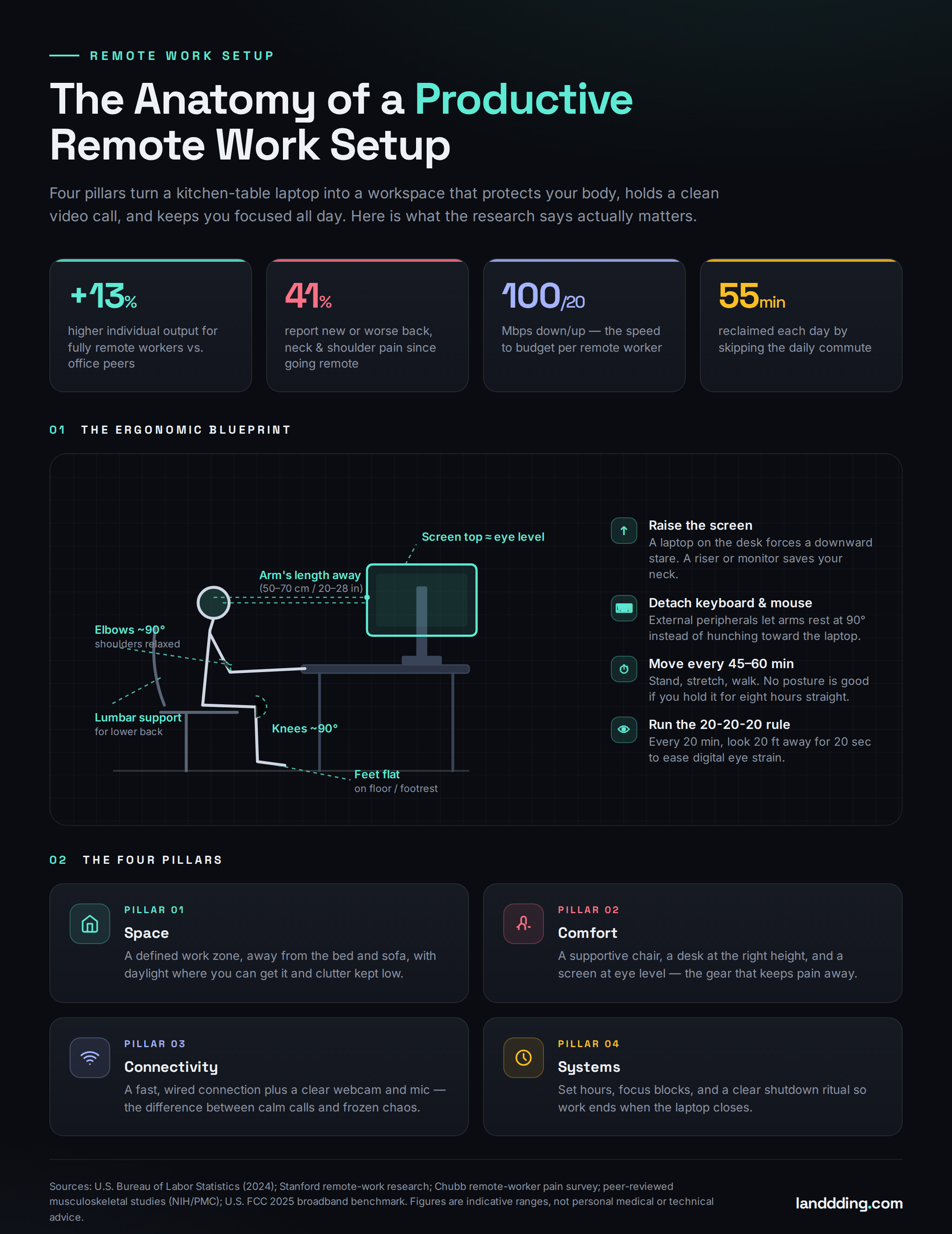
The Four Pillars of a Great Remote Work Setup
A productive home office setup stands on four pillars: space, comfort, connectivity, and systems. Skip one and the whole thing wobbles. Here's how to get each right.
Pillar 1 — Space: Where You Work Shapes How You Work
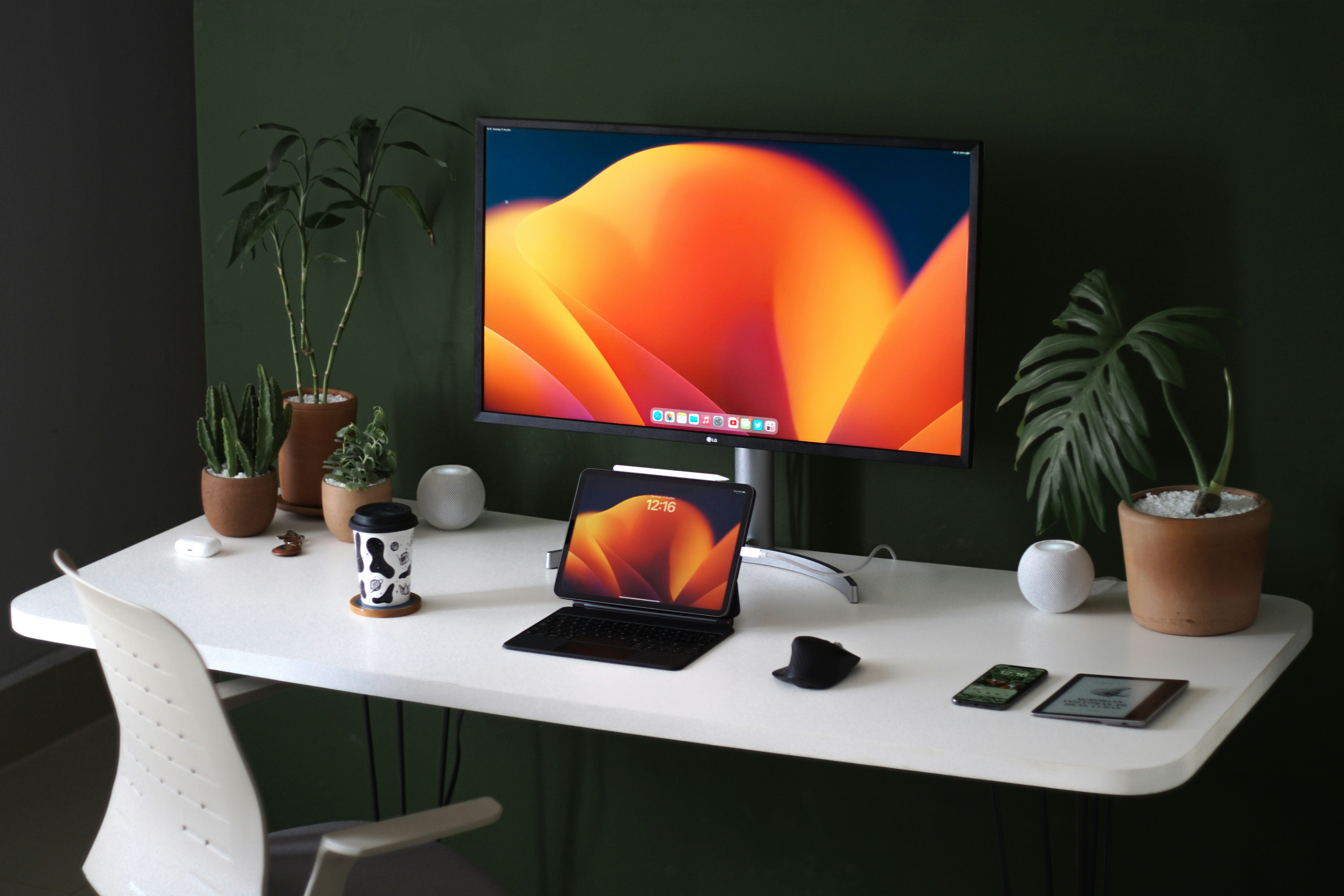
Your brain takes cues from its surroundings. A defined work zone — even a small one — signals "focus mode" in a way that the couch never will.
Pick a spot you use only for work if you can. A spare corner, a section of a desk, or a fold-away station all count. The goal is separation between where you work and where you rest.
Daylight is the cheapest upgrade available. Position your desk so a window is to the side rather than behind you, which keeps your screen glare-free and your face well-lit on calls.
Working with a small space? Use vertical storage, a wall-mounted or fold-down desk, and a laptop you can pack away. A clear "shutdown" at the end of the day matters even more when the office is also the living room.
Keep clutter low. A tidy field of view reduces the small, constant decisions that drain attention over an eight-hour day.
Pillar 2 — Comfort: The Ergonomics That Protect Your Body
This is the pillar that separates a setup you can use for an hour from one you can use for a career. Comfort isn't a luxury here — it's injury prevention.
Start with the chair. A good ergonomic chair supports the natural inward curve of your lower back, lets your feet sit flat on the floor, and keeps your knees at roughly a 90-degree angle. If a new chair isn't in budget, a rolled towel or cushion at your lower back does real work.
Raise your screen. A laptop sitting flat on a desk forces you to look down all day, and the weight of your head pulls on your neck and back. The top of your screen should land at or just below eye level — a monitor, a laptop stand, or even a stack of books solves it.
Detach your keyboard and mouse. Once the screen is raised, you'll need external peripherals so your elbows can rest near 90 degrees with relaxed shoulders. An ergonomic keyboard helps if you type for hours, but separation alone is the bigger win.
Then move. No posture is healthy if you hold it for eight hours. Stand, stretch, or walk every 45 to 60 minutes, and run the 20-20-20 rule for your eyes: every 20 minutes, look at something 20 feet away for 20 seconds.
Pillar 3 — Connectivity and Tech: The Kit That Keeps Calls Smooth
Nothing erodes your credibility faster than freezing mid-sentence on a client call. Your tech stack is the invisible backbone of remote work.
Internet first. As a rule of thumb, budget around 100 Mbps download and 20 Mbps upload per remote worker — the same benchmark the FCC uses to define broadband. Upload speed is the part most people forget, and it's exactly what video calls and file uploads depend on.
Whenever possible, plug into your router with an Ethernet cable. A wired connection is more stable and lower-latency than Wi-Fi, which matters more than raw speed for smooth calls.
Look and sound professional. A dedicated webcam beats most built-in laptop cameras, and a separate microphone or a decent headset beats them both for audio. People forgive a soft image far faster than they forgive bad sound.
Light your face, not your wall. A small, soft light in front of you — or that side window from Pillar 1 — instantly upgrades how you appear on camera.
Finally, build in a backup: a phone hotspot or a second connection so one outage doesn't sink your whole day.
Pillar 4 — Systems: The Routines That Keep You Focused
The best gear in the world won't help if work bleeds into every hour. Systems are what make a remote setup sustainable.
Set working hours and honor them. Clear start and stop times protect you from the always-on creep that remote workers consistently rank as their biggest challenge.
Work in focus blocks. Batch deep work into uninterrupted stretches and cluster your calls together. Use a "do not disturb" status so notifications don't shred your attention.
Create a shutdown ritual. Closing the laptop, tidying the desk, and writing tomorrow's top three tasks tells your brain the day is over — the mental equivalent of a commute home.
How to Build Your Setup on Any Budget
You don't need everything at once. Here's how the essentials scale.
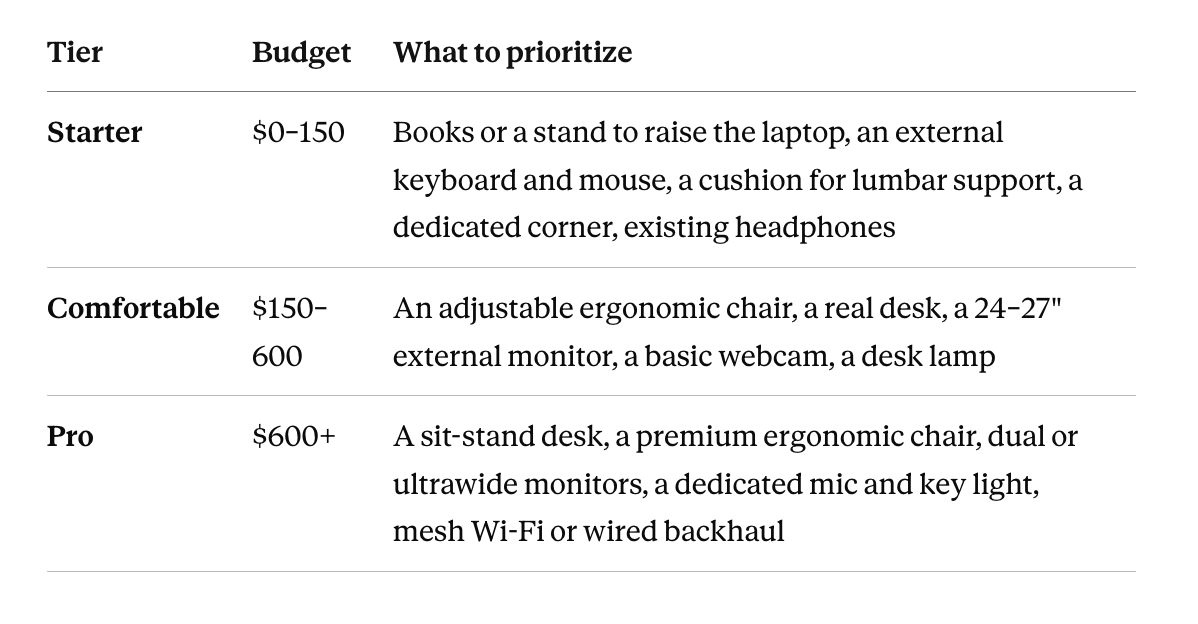
One tip worth knowing: many companies offer a work-from-home stipend to cover exactly these costs. If yours does, spend it on the chair and the monitor first — they deliver the most comfort per dollar.
Five Remote Work Setup Mistakes to Avoid
Working from the laptop alone. It guarantees a hunched neck. Raise the screen and add peripherals.
Ignoring upload speed. A fast download number means little if your video keeps freezing.
No daylight or harsh overhead light. Both strain your eyes and tank your on-camera presence.
Treating the sofa as a desk. Comfortable for ten minutes, costly over months.
Never logging off. Without boundaries, remote work expands to fill every waking hour.
Your Remote Work Setup Checklist
A dedicated, clutter-free work zone with side-on daylight
A supportive chair, feet flat, knees at ~90°
Screen top at eye level, keyboard and mouse detached
~100/20 Mbps internet, ideally wired
A clear webcam, good mic, and front lighting
Set hours, focus blocks, and a shutdown ritual
A movement reminder every 45–60 minutes
Frequently Asked Questions
What internet speed do I need to work from home? Aim for around 100 Mbps download and 20 Mbps upload per person. Light tasks like email need far less, but video calls, screen sharing, and file uploads lean heavily on upload speed — so don't judge a plan by its download number alone.
Does "remote" mean working from home? Usually, yes, but not always. Remote work means working away from a central office, which most often is home — but it can also mean a coworking space, a café, or anywhere with a reliable connection.
How do I set up a home office in a small space? Use a fold-down or wall-mounted desk, build storage upward instead of outward, and choose a laptop you can pack away. A defined shutdown routine matters even more when your office doubles as a living space.
What makes a chair ergonomic? An ergonomic chair supports your lower back's natural curve, adjusts in height so your feet rest flat and knees sit near 90 degrees, and lets you recline slightly. Adjustability matters more than price.
How do I stay productive when working from home? Build a dedicated space, set firm working hours, and protect uninterrupted focus blocks. Most remote productivity problems are environment and boundary problems, not motivation problems.
What is a work-from-home stipend? It's an allowance some employers provide to help cover home office costs — things like a chair, monitor, desk, or internet. If yours offers one, prioritize the gear that affects your comfort most.
Final Thoughts
A great remote work setup isn't a shopping list — it's four pillars working together. Get the space, comfort, connectivity, and systems right, and the rest is just preference.
Start with whatever's hurting most today. Raise the screen, support your back, fix the upload speed, and set a stop time. Your future self — calmer, focused, and pain-free at 5 p.m. — will thank you.