Turning product images into videos means animating still images, such as screenshots, product shots, brand illustrations, and feature graphics, into short clips with motion, so a landing page can show a product instead of only describing it. The image supplies the visual, and the motion, such as a slow zoom, a pan across a dashboard, or a subtle loop, brings attention to what matters.
For SaaS teams, this matters because a landing page has seconds to explain what a product does. A static screenshot asks the visitor to work out what they are looking at, while a short clip can guide their eye to the key feature. The difficulty is that filming a software product is not like filming a physical one, and full video production is slow. Animating images the team already has is a faster route to motion. This article covers which images work well, what kinds of clips suit a landing page, and what to watch for before publishing.
Why Landing Pages Benefit From Motion
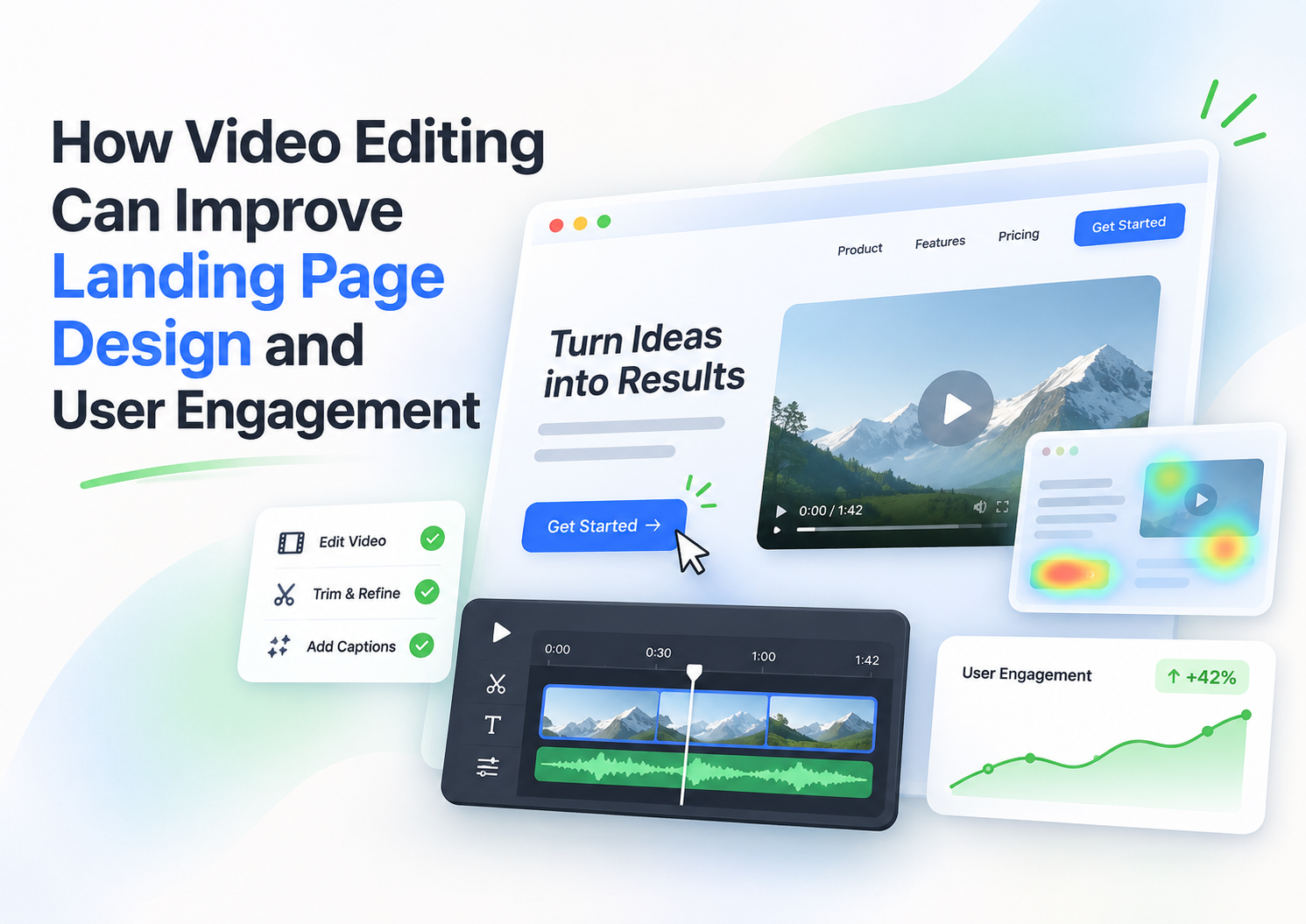
Motion does a few useful things on a landing page. It draws the eye to a specific area, which helps visitors notice the feature that matters. It shows change over time, such as a state moving from empty to filled, which a still image cannot do. And it adds a sense of polish that makes a product page feel active instead of static.
There is also a practical benefit. Teams already have product screenshots, brand stills, and feature graphics from design and marketing work. Reusing them as the source for video avoids a new shoot, and one image can yield several clips for different parts of the page, the ad campaigns, and social posts.
Types of Image-Based Videos for a Landing Page
A few formats come up repeatedly on SaaS pages.
Hero loops. A short, subtle clip behind or beside the headline that adds movement without competing with the message.
Feature spotlights. A brief clip that moves toward one feature and holds long enough for a visitor to read what it does.
Mini walkthroughs. Several screens joined into a short sequence that suggests how a task flows from start to finish.
Ad variations. One brand image animated into several versions for different platforms and audiences.
Social snippets. Shorter or vertical cuts of the same clips, used to point people back to the page.
When Image to Video Is the Right Tool, and When It Is Not
Animating a still image suits mood, emphasis, and camera movement. It is a good fit for hero visuals, feature highlights, and ad creative where the goal is to draw attention and add polish.
It is less suited to situations where exact detail matters. Small interface text, button labels, and data in a screenshot need to stay accurate, and a generated animation can alter fine details. For anything that must show the product precisely, a screen recording of the real interface is the more reliable choice. Many teams combine the two: screen recordings for accurate demonstrations and animated images for atmosphere and emphasis.
Accuracy also has a trust dimension. A landing page video should never suggest features or behavior the product does not have. Reviewing every clip against the real product before it goes live is a basic safeguard.
Landing Page Practicalities
A video that looks good but slows the page down does more harm than good. A few practical points help.
Keep files light. Short loops and compressed files load faster. Using a still poster image as a placeholder keeps the page looking complete while the video loads.
Plan for autoplay without sound. Most landing page videos autoplay muted, so the message should work visually, with on-screen text or captions for anything that needs explaining.
Respect accessibility. Some visitors prefer reduced motion, so decorative loops should be easy to pause or turn off, and the page should still make sense without them.
Think about mobile. A vertical or square version often suits a phone better than a wide clip, so it helps to export in the ratio each placement needs.
Test placement. A clip near the top of the page, one beside a feature, and one in a testimonial section each do different jobs, and testing shows which ones help visitors act.
Invideo: Image to Video With an Editable Timeline
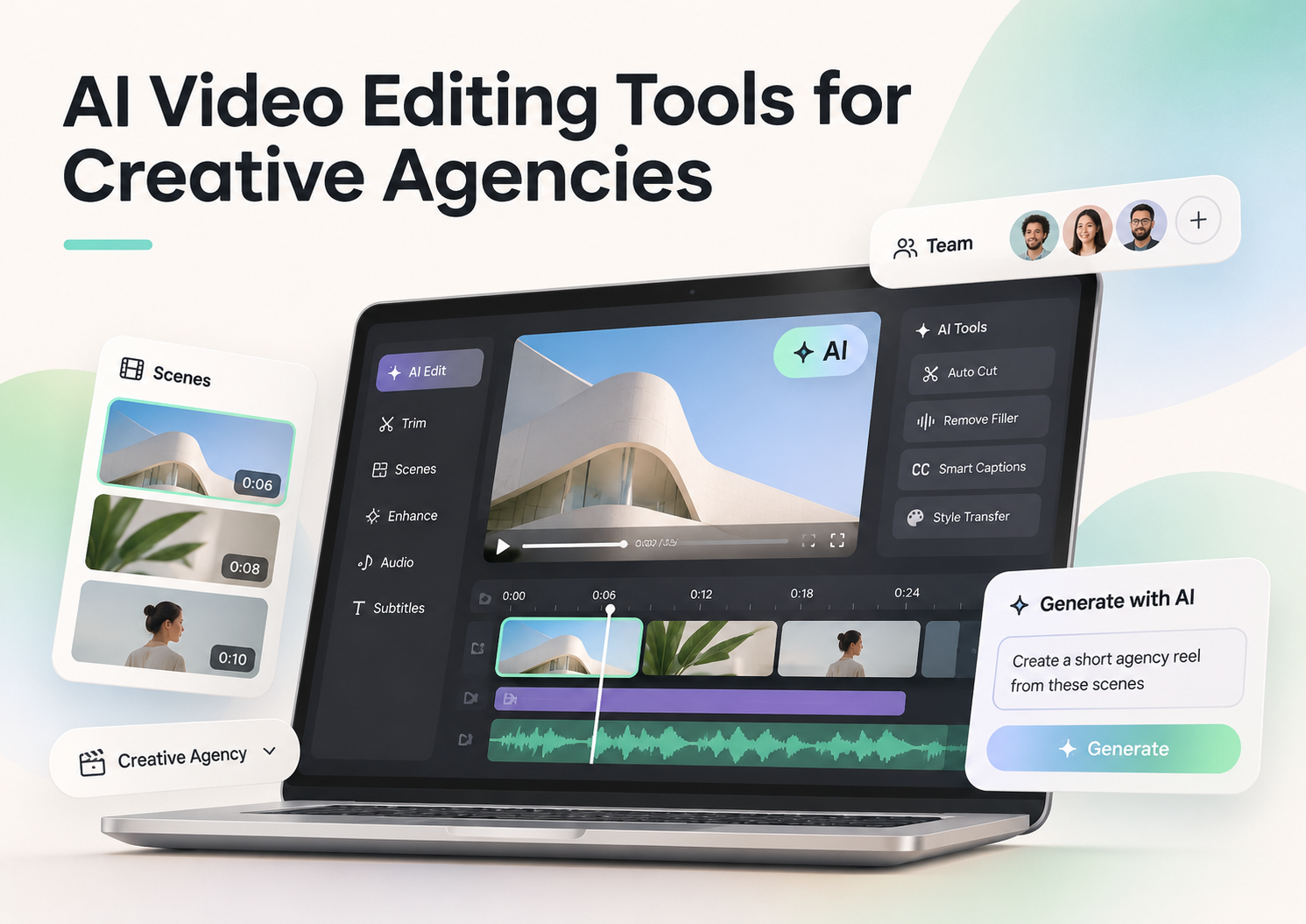
Invideo includes an image to video workflow that fits this kind of work. You upload a photo, describe how it should move, such as a slow zoom or a pan across the frame, and choose a model, and an AI agent generates the clip. The result can then be refined on a multitrack timeline.
Key features:
Upload of JPG, PNG, or WEBP images, including product shots, brand stills, and listing photos
Motion directed in plain language, with more specific direction producing a closer first result
Consistent details, so brand colors, packaging, and character references stay in context across clips in a project
Reference images, such as front, side, back, and close-up views, to help a product keep the same identity across several clips
Product and e-commerce clips, plus ad variations for different platforms from a single brand image
Clip length that depends on the model chosen, with longer sequences split into clips that fit the model and stitched together
Export in the aspect ratio a platform needs, such as 16:9 or 9:16
Editing of the generated clip on a timeline, and the option to connect outside AI assistants to the editor
The page itself suggests playing the generated clip and checking how the original details carry through, which is sound advice for any SaaS team. The manual timeline is free to use for editing the result, while generating clips with the agent runs on credits through paid plans. For a wider look at the editors teams use to finish this kind of work, see our comparison of AI video editing tools for creative agencies.
Things to Watch For
Interface accuracy. Check text, labels, and data in every clip against the real product.
Brand consistency. Reuse the same style and references across clips so the page looks like one brand.
Over-animation. Too much motion distracts from the message. A restrained clip usually works better.
Usage terms. Confirm what the tool's terms allow for commercial use before publishing.
Page speed. Measure load time with the videos in place, and compress or shorten clips if needed.
Final Thoughts
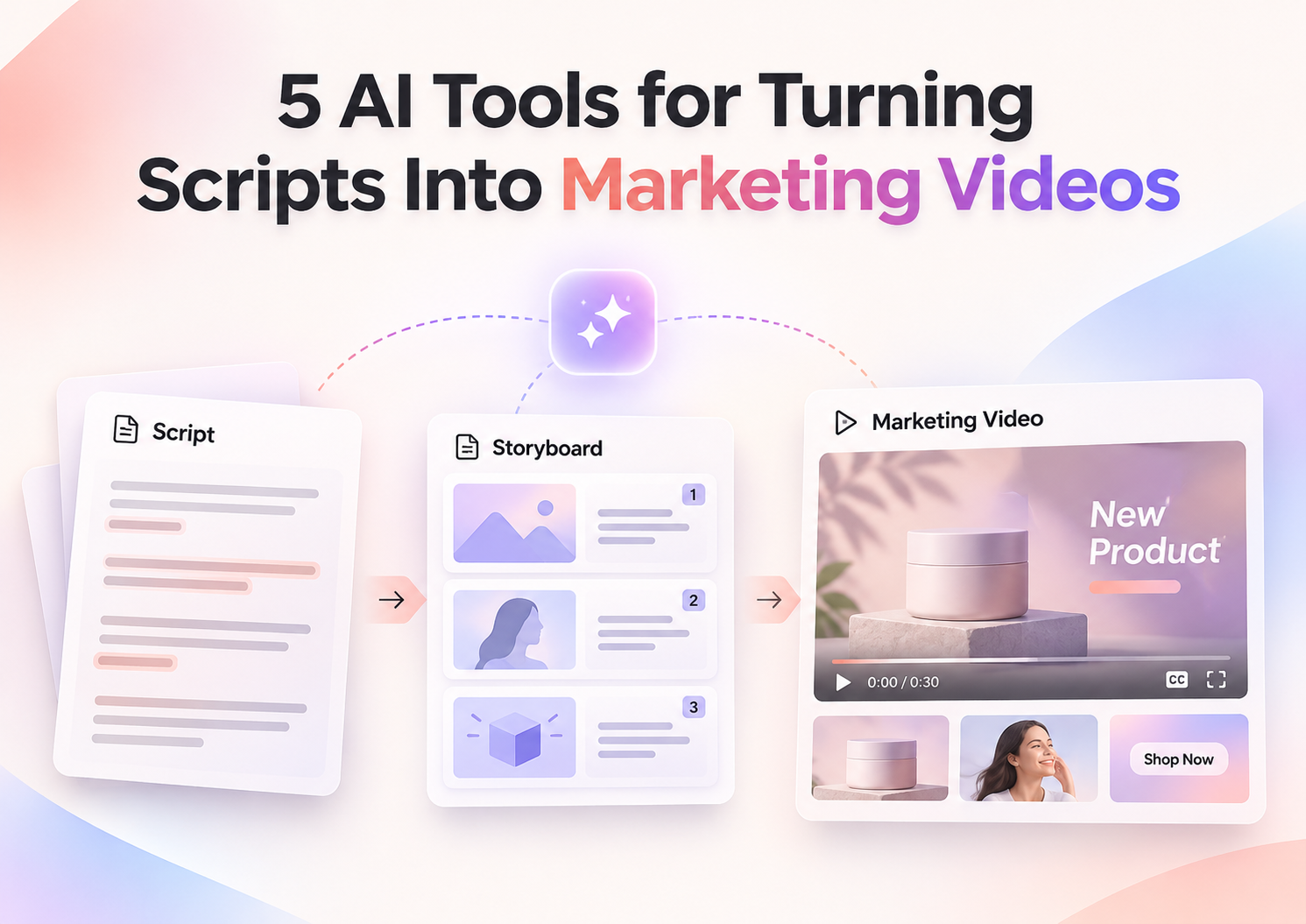
Turning product images into video is a practical way for SaaS teams to add motion to a landing page without a full production. The images already exist, the tools handle the animation, and a few careful choices about placement and accuracy keep the result honest and fast. When there is no image to start from, script to video AI tools can build the clip from a written script instead.
The goal is not to make a page busier. It is to help a visitor understand a product faster, by moving their attention to the right place at the right moment.
FAQ
Can I animate a product screenshot? Yes. A slow zoom or pan can guide attention to a feature. Check that small text and interface details stay accurate, and use a screen recording when exact detail matters.
How long should a landing page video be? Short. Hero loops and feature clips usually work best when brief, since visitors are scanning. Longer content can live behind a play button.
Will video slow down my landing page? It can if files are large. Short clips, compression, and a poster image placeholder help keep the page fast.
Do I need video editing skills to turn images into video? Not to get started. With a tool like invideo editor, you describe the motion you want in plain language, then adjust the result on a timeline if needed.
Can I make several versions from one image? Yes. A single brand or product image can be animated into several clips for different platforms and aspect ratios, and invideo supports exporting in the ratio each placement needs.